
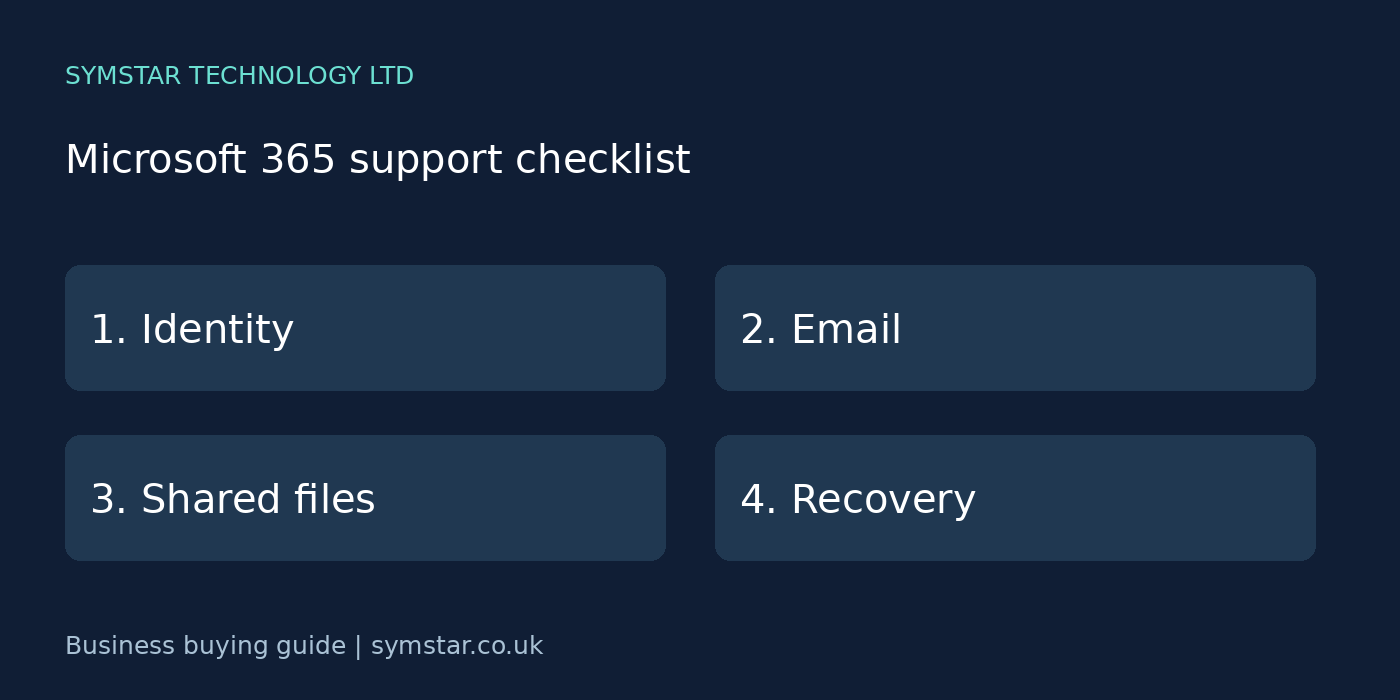
Microsoft 365 support for London and Kent businesses goes beyond fixing an occasional Outlook problem. Your organisation also needs clear account ownership, sensible file sharing and a process for staff changes. These checks help you discuss everyday support and planned improvements with a provider.
Need practical help with your Microsoft 365 environment? Explore our Microsoft 365 support service or contact Symstar Technology Ltd about your users, applications and current issues. Migration and security review work can be scoped separately.
On this page
1. Identify your tenant and administrator ownership
Confirm which Microsoft 365 tenant belongs to your organisation and who is authorised to administer it. Record the business contact responsible for subscriptions and domain ownership. Keep a secure route to essential administration if the usual IT contact is unavailable.
Use separate, controlled administrator access rather than sharing one privileged account between staff. Agree how access is granted, reviewed and removed. The exact configuration should be reviewed against your current environment.
2. Define what your support agreement covers
Explain which applications your team uses: Outlook, Teams, SharePoint, OneDrive and any other relevant services. Ask which types of troubleshooting, account changes and configuration work are included in the agreement. Major migrations may need separate planning and pricing.
Provide office locations and remote-working requirements. Microsoft 365 administration is often handled remotely, while device or local network faults may require another support route. Agree who coordinates issues that span both.
3. Match licences to the way your staff work
Review what each group of users needs before changing subscriptions. Some staff need desktop applications; others have different access requirements. Security and administration capabilities also vary by plan and configuration.
Ask the provider to explain any proposed licence change in terms of required features and recurring cost. Avoid cancelling subscriptions until the effect on access, data and dependent services has been checked.
4. Strengthen sign-in and recovery arrangements
Discuss multifactor authentication and the registration process for staff. Provide a clear way to report a lost phone, unexpected authentication prompt or suspected account compromise. Recovery arrangements should verify identity before changing access.
Ask how privileged accounts are protected and reviewed. Do not approve an authentication prompt you did not initiate. Security settings and available options should be checked against current Microsoft guidance and your licences.
5. Give email problems a clear support route
When reporting an Outlook issue, include the affected users, the time it started and any visible error. State whether webmail is working and whether the problem affects sending, receiving or both. This helps the support team narrow the investigation.
A provider should also understand your domain and email configuration. Any change to mail routing should be planned carefully, with ownership confirmed and an agreed way to validate the result. Avoid changing records simply because one device has a problem.
6. Decide where business files should live
Explain which files belong to an individual and which need shared team ownership. Ask for a documented approach to SharePoint libraries, OneDrive and permissions. Staff should know where the authoritative working copy is located.
Review external sharing deliberately. Sharing a link, moving a folder or changing membership can affect who sees a document. Confirm the intended recipients and permission level before making a sensitive file available.
7. Make staff changes repeatable
Use a checklist for starters, role changes and leavers. Include accounts, licences, group membership, mailbox access and ownership of business documents. Name the person authorised to approve each change.
Before deleting accounts or removing licences, review any records that must remain available and the appropriate retention arrangements. A controlled process reduces the risk of both unnecessary access and missing business information.
8. Review recovery and backup requirements
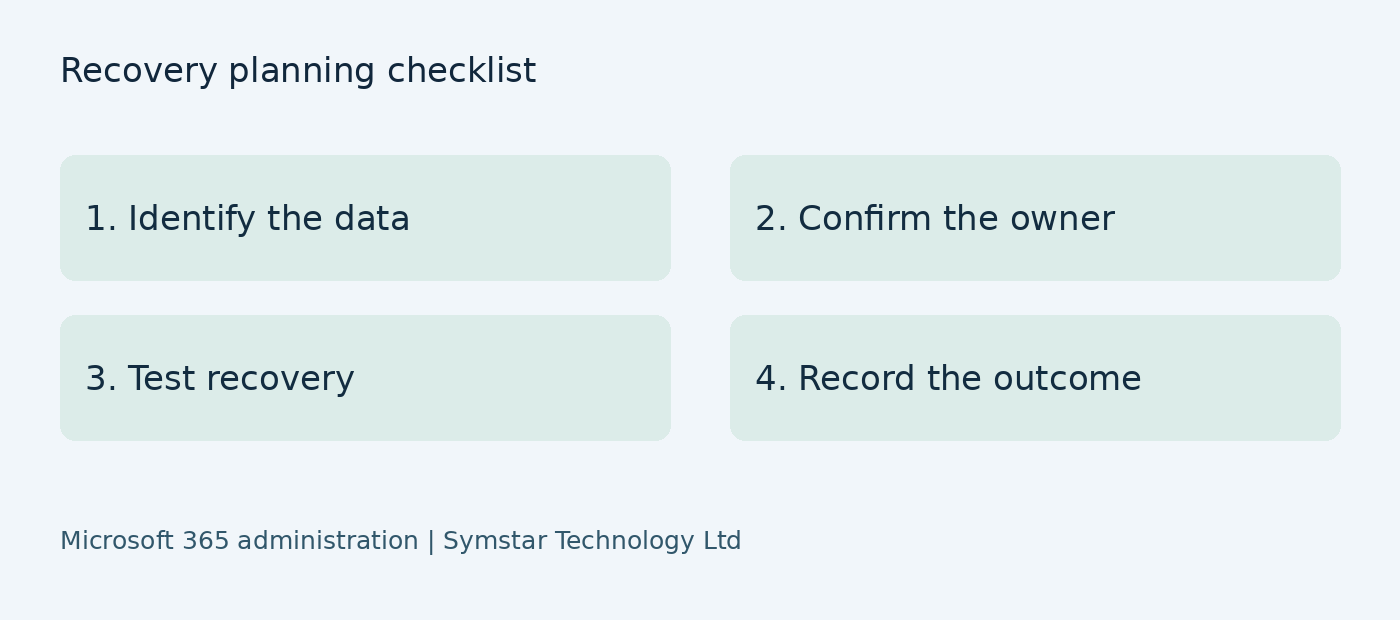
Discuss the information your business needs to recover and the timescale that matters. Built-in retention and recovery features have their own scope and limitations. Confirm how they apply to your configuration before deciding whether additional backup is appropriate.
Ask who monitors any backup service, what recovery tests are performed and who can request a restore. Keep the agreed process documented so a future incident does not depend on one person remembering the steps.
9. Plan changes around your working day
For migrations or major changes, agree the scope, prerequisites, timetable and validation steps. Identify affected staff and explain what they need to do. Include support arrangements immediately after the change, when unexpected access issues may appear.
For Microsoft 365 support in London and Kent, start by telling Symstar Technology Ltd about your user count, current subscriptions and main concerns. A discovery conversation can help define practical next steps, with any security review or migration work scoped separately where appropriate.
Prepare a practical support brief
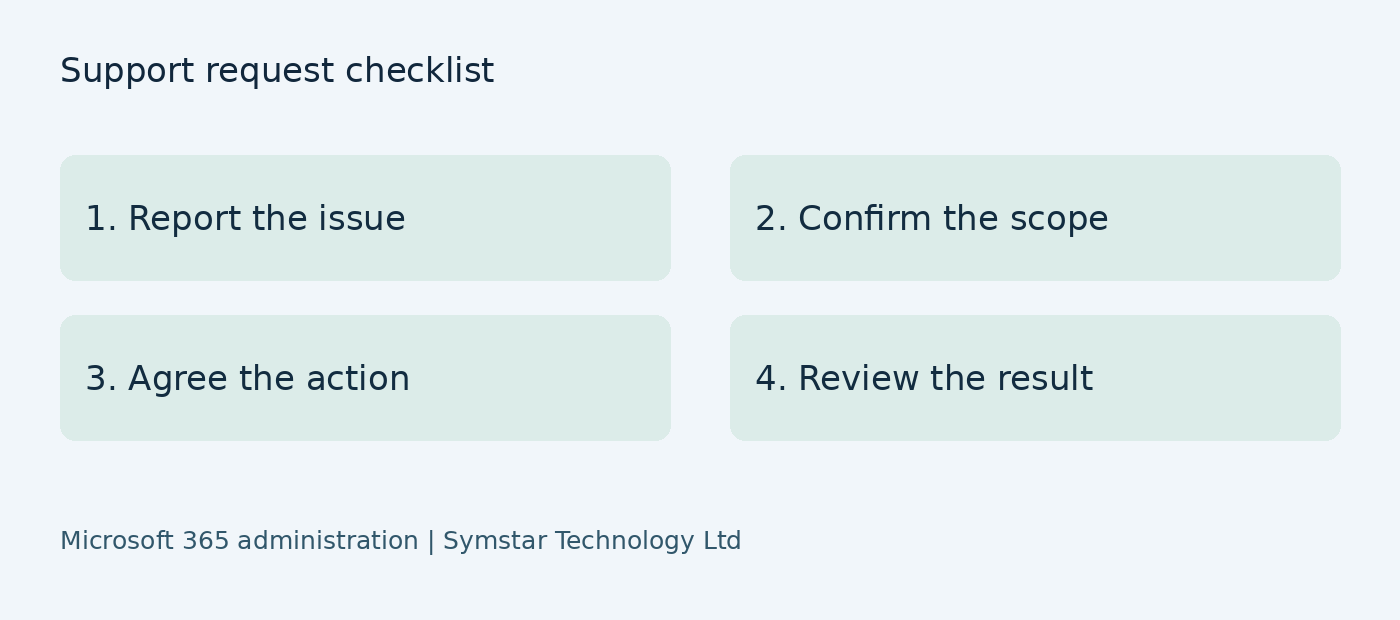
Begin a support discussion with a factual brief. Record the number of users, current subscription names, business domains and applications used. Include staff working from home and any offices with different equipment. Explain whether you want to resolve existing faults, review administration or plan a migration; these tasks need different scopes.
Identify the authorised business contact who approves account and subscription changes. Record who currently provides administration and where essential documentation is held. Avoid sending privileged passwords as part of a routine quote request. A provider can establish an appropriate secure access process after the work and responsibilities have been agreed.
When requesting support, include concrete examples of the main problems. Describe whether Outlook issues affect one laptop or several users, whether files are missing or inaccessible, and which staff need help. Useful symptoms guide discovery more effectively than a general statement that the cloud system is broken.
Ask for a plan that distinguishes immediate troubleshooting from longer-term improvements. A working mailbox does not by itself prove that sharing permissions, administrator access or recovery arrangements are appropriate. The review should explain what was checked, what remains unknown and which decisions require the business owner’s involvement.
Organise shared files and ownership
Create a simple guide explaining where different kinds of work should be stored. Distinguish individual working material from records that need lasting team ownership. Name the owner of each shared library or workspace and explain how staff request access. The right structure follows your business processes, rather than the preferences of the person who first created a folder.
Discuss existing document duplicates during the review. Moving documents without considering links, permissions and working habits can create confusion. Before a reorganisation, identify the authoritative copy and confirm who uses it. Plan validation so staff can find their records and understand the new location.
Explain external sharing through practical examples. A colleague may need to edit a document, while an external recipient may only need to view it. Confirm the audience and permission before sharing. Sensitive records require an approved approach, and public links should not be treated as the default way to make every document convenient.
If storage is under pressure, investigate usage and ownership before removing information. A support review can help identify the causes of storage pressure, but decisions about retention belong to the organisation. Record approvals for any deletion and confirm the consequences for recovery and shared access before it happens.
Manage starters, role changes and leavers
A starter request should include the person’s role, start date, approved applications and required team access. Specify whether equipment is already available or needs preparation. Decide who checks that the employee can sign in and use the essential services on the first day. Include instructions for reporting problems and handling unexpected sign-in prompts.
Your provider should receive requests from authorised contacts. Staff changes can affect sensitive access, so a clear approval route matters. Avoid treating every emailed request as sufficient evidence that an account should be created or permissions expanded. Your provider should explain the agreed verification process.
A leaver request should address sign-in access, business records, mailbox handling, devices and ownership of shared work. The appropriate actions depend on the organisation’s policies and configuration. Plan them before removing an account or subscription, particularly where other staff depend on documents or messages held by that person.
Review role changes as carefully as departures. A role change should remove permissions that are no longer needed as well as grant new ones. Keep an audit of approvals and completion so the business can see whether each change was requested, reviewed and carried out.
Troubleshoot Outlook and email issues
Keep a record of recurring symptoms rather than starting every investigation from the beginning. Note the user, device, application version where available and the time the fault occurs. Record whether the same account works through another approved route. This evidence can help identify whether the issue is local to a device or affects a wider service.
Troubleshooting should separate symptoms from assumptions. A delayed message, a sign-in prompt and a missing calendar item can have different causes. Describe what actually happened and provide the visible error through the agreed support channel. Do not include unrelated confidential message content unless it is necessary and authorised for investigation.
When a proposed fix involves resetting a profile, changing configuration or reinstalling software, ask what information or settings may be affected. The support engineer should explain the intended step and any preparation. Keep a record of the change and check whether it resolved the original issue rather than simply closing the request when the application opens.
For problems affecting several staff, agree central communication and escalation. Your incident arrangements should make it clear who updates the business contact and what employees should do meanwhile. This avoids several people independently changing settings while another person investigates the wider issue.
Plan a migration and validate the result
Begin a migration by agreeing what is moving and what is outside scope. List mailboxes, shared mailboxes, documents, calendars and other relevant information. Identify existing permissions and business dependencies. Establish the source owner and confirm that the organisation has authorised the work before data is transferred.
A migration plan should include prerequisites and validation. Confirm access, the intended destination and the way users will work after the change. Agree when disruption is acceptable and how staff will receive instructions. Do not assume that copying data is enough to make every application, link or permission work as expected.
Use a review checklist for the result. Check representative users, important folders, mail flow and access to essential shared records. Include a route for reporting missing items or unexpected permissions. Define what happens if a material issue is found and who can approve a rollback or another corrective step.
After the migration, update documentation and close out temporary arrangements. The project should include a clear handover of responsibilities and outstanding work. Keep the source available or retire it only according to the agreed plan, with retention requirements and business approval considered before any deletion.
Example: a new employee needs shared records
Consider a hypothetical business hiring a new team member who needs email, meetings and access to a shared project library. The manager approves the role and required permissions. The administrator then prepares the account and checks the assigned subscriptions before the employee starts, using the organisation’s documented process.
Onboarding should include checking that access works for the intended user. Confirm that the employee can find the correct shared workspace and understands how to report a problem. This is a planning example, not a client testimonial or a guarantee about a particular Microsoft configuration.
Example: documents are stored in the wrong place
A hypothetical team discovers that important shared documents are held in a former employee’s individual workspace. Before moving anything, the business identifies the records, confirms required access and decides where team ownership should sit. The administrator assesses the proposed move and its effect on links, permissions and working copies.
A file migration review should explain validation as well as the transfer itself. Ask the responsible staff to confirm that representative documents are available and usable in the intended destination. Keep an approved plan for the source and any outstanding corrections; avoid deleting it simply because a copy operation has finished.
What to prepare before requesting troubleshooting
Record the affected user, application, device and visible error. State when the problem started and whether other staff have the same experience. If an approved alternative route works, include that observation. Share only the information necessary for investigation through the agreed support channel. Never send authentication codes in a routine help request.
Support becomes more effective when incidents have a traceable record. Ask for updates against the same request rather than creating several separate conversations. Confirm the original symptom has been resolved and report any remaining issue clearly before the request is closed.
Make ongoing administration a shared responsibility
A provider can administer approved changes, but the business still needs to decide who should have access and what information must be preserved. Set a clear authorisation route and keep a deputy available for essential decisions. Record changes to managers and supplier contacts so requests do not depend on a person who has left.
Your support arrangement should include an understandable account of completed work and outstanding recommendations. Symstar Technology Ltd can discuss everyday support, security reviews and migration requirements with your organisation, with each task scoped around your current systems and business priorities.
Review your arrangement after significant changes
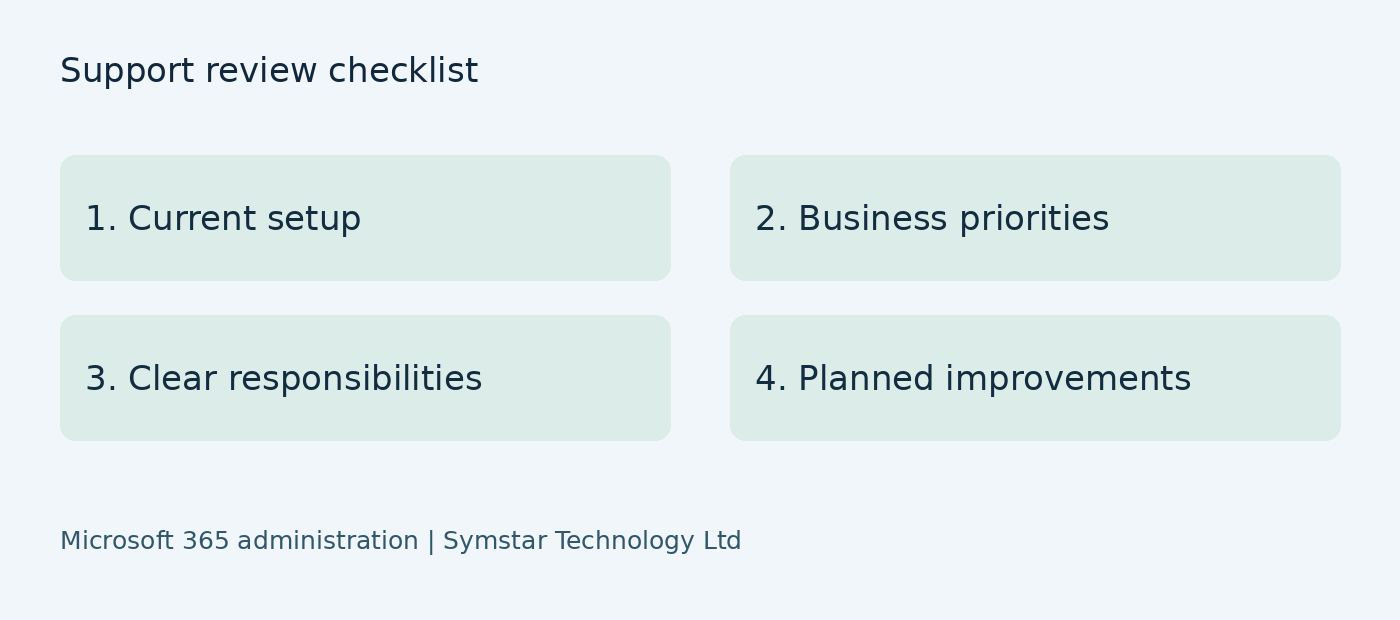
Revisit the support scope when staff numbers grow, teams reorganise or the business adopts another application. Confirm whether current licences and permissions still match the work being done. Major changes may need a separate project rather than being treated as ordinary troubleshooting, so discuss preparation and costs before scheduling them.
Use a documented review process for your Microsoft 365 environment. Keep owners, approval rules and recovery arrangements current. Agree the next few actions and check their completion, so decisions about the environment remain visible instead of becoming a collection of unexplained settings changes.
Frequently asked questions
Do I need support if Microsoft 365 is a cloud service?
Your organisation still needs account administration, device troubleshooting and decisions about permissions, licences and file ownership.
Can Microsoft 365 support help with SharePoint storage?
A review can identify usage and discuss retention, ownership and storage options. Deleting business data should follow an approved process.
Is a migration included in routine support?
It depends on the agreement. Confirm planning, data scope, timing, testing and follow-up support in writing.
Discuss your business requirements
Explore our Microsoft 365 support services, read more about cloud backup and disaster recovery, or contact Symstar Technology Ltd to discuss your requirements.
For further guidance, see Microsoft’s administration documentation.
Related business IT guides
For broader support planning, read our London startup IT checklist and managed IT support Kent buyer guide. Explore Symstar’s Microsoft 365 services or our IT support Kent service for help with your business requirements.
See how our work fits together in the MHC Group Microsoft 365 migration case study. For wider technology support, explore our services for London businesses and Kent businesses.